GOAD - Installation
Requirements:
- VMWare workstation:
Click below to install VMWare workstaion, if you don't already have it installed (Account needed to download)
- Vagrant:
Install | Vagrant | HashiCorp Developer
- Vagrant VMware utility:
Install | Vagrant | HashiCorp Developer
- Clone the GOAD (Game of Active Directory GitHub Repo)
- Install the below vagrant plugins:
VMWare: Installation
VMWare-Installation
Clone the GitHub repository
Python3 Virtual env Install
I will be using a python virtual environment venv on the Debian WSL to deploy GOAD
Uncomment `ansible/roles/child_domain/tasks/main.yml`
# line 26 -28
DNSCHANGE
- name: "disable interface {{nat_adapter}} before join domain"
     win_shell: netsh interface set interface "{{nat_adapter}}" disable

# line 87 - 92
- name: "enable interface {{nat_adapter}} after domain joined"
   win_shell: netsh interface set interface "{{nat_adapter}}" enable
   register: enable_interface
   until: "enable_interface is not failed"
   retries: 3
   delay: 120
Check for dependencies
Installation
- To install run the goad script and launch install or use the goad script arguments
./goad.sh -p vmware
# here choose the lab you want (GOAD/GOAD-Light/NHA/SCCM)
GOAD/vmware/local/192.168.56.X > set_lab <lab>

# here choose the  ip range you want to use ex: 192.168.56 (only the first three digits)
GOAD/vmware/local/192.168.56.X > set_ip_range <ip_range>

# Install
GOAD/vmware/local/192.168.56.X > install
VirtualBox: Installation
VirtualBox Installation
Clone the GitHub repository
Python3 Virtual env Install
I will be using a python virtual environment venv on the Debian WSL to deploy GOAD
Uncomment ansible/roles/child_domain/tasks/main.yml
# line 26 -28
DNSCHANGE
- name: "disable interface {{nat_adapter}} before join domain"
     win_shell: netsh interface set interface "{{nat_adapter}}" disable

# line 87 - 92
- name: "enable interface {{nat_adapter}} after domain joined"
   win_shell: netsh interface set interface "{{nat_adapter}}" enable
   register: enable_interface
   until: "enable_interface is not failed"
   retries: 3
   delay: 120
Check for dependencies
Installation
- To install run the goad script and launch install or use the goad script arguments
./goad.sh -p virtualbox
# here choose the lab you want (GOAD/GOAD-Light/NHA/SCCM)
GOAD/virtualbox/local/192.168.56.X > set_lab GOAD

# here choose the  ip range you want to use ex: 192.168.56 (only the first three digits)
GOAD/virtualbox/local/192.168.56.X > set_ip_range 192.168.28

# Install
GOAD/virtualbox/local/192.168.28.X > install
AWS: Installation
AWS Installation
Clone the Github Repo
Add AWS Credentials to PATH
# Profile name MUST be named 'goad'
aws configure --profile goad
AWS Access Key ID [****************J6DK]:
AWS Secret Access Key [****************t2Fz]:
Default region name [None]:
Default output format [None]
Check for dependencies
./goad.sh -t check -p aws -l GOAD

_____   _____          _____
/ ____| / ||| \   /\   |  __ \
| |  __||  |||  | /  \  | |  | |
| | |_ ||  |||  |/ /\ \ | |  | |
| |__| ||  |||  / /__\ \| |__| |
\_____| \_|||_/________\_____/
    Game Of Active Directory
    Pwning is coming

Goad management console type help or ? to list commands

[-] provisioner method local is not allowed for provider aws
[*] automatic changing provisioner method local to default for this provider : remote
[*] lab instances :
┏━━━━━━━━━━━━━━━━━━━━━━━━┳━━━━━━┳━━━━━━━━━━━━┳━━━━━━━━━━━━━━━━━┳━━━━━━━━━━━┳━━━━━━━━━━━━┳━━━━━━━━━━━━┓
┃ Instance ID            ┃ Lab  ┃ Provider   ┃ IP Range        ┃ Status    ┃ Is Default ┃ Extensions ┃
┡━━━━━━━━━━━━━━━━━━━━━━━━╇━━━━━━╇━━━━━━━━━━━━╇━━━━━━━━━━━━━━━━━╇━━━━━━━━━━━╇━━━━━━━━━━━━╇━━━━━━━━━━━━┩
│ 27a12c-goad-vmware     │ GOAD │ vmware     │ 10.10.25.0/24   │ installed │ No         │            │
│ 74746e-goad-virtualbox │ GOAD │ virtualbox │ 192.168.28.0/24 │ installed │ Yes        │            │
└────────────────────────┴──────┴────────────┴─────────────────┴───────────┴────────────┴────────────┘
[+] terraform found in PATH
[+] rsync found in PATH
[+] aws found in PATH
[+] Connected to AWS using profile 'goad'
[*] User Information:
[*]   Account: 1234567890
[*]   User ARN: arn:aws:iam::1234567890:user/goad_user
[*]   User ID: AIDAZI2LCH5YUJMN5VWUU
Edit ~/.goad/goad.ini
Choose your preferred Region. I changed mine to us-east-1
resource "aws_instance" "goad-vm-jumpbox" {
ami                    = "ami-00de3875b03809ec5" # Change this
instance_type          = "t2.medium"
Same with the Windows.tf file
"dc02" = {
name               = "dc02"
domain             = "north.sevenkingdoms.local"
windows_sku        = "2019-Datacenter"
ami                = "ami-075309a66c5dedf22" # Change this
instance_type      = "t2.medium"
private_ip_address = "192.168.56.11"
password           = "NgtI75cKV+Pu"
}
"dc03" = {
name               = "dc03"
domain             = "essos.local"
windows_sku        = "2016-Datacenter"
ami                = "ami-0d99de470a2818d2b" # Change this
instance_type      = "t2.medium"
private_ip_address = "192.168.56.12"
password           = "Ufe-bVXSx9rk"
}
Installation
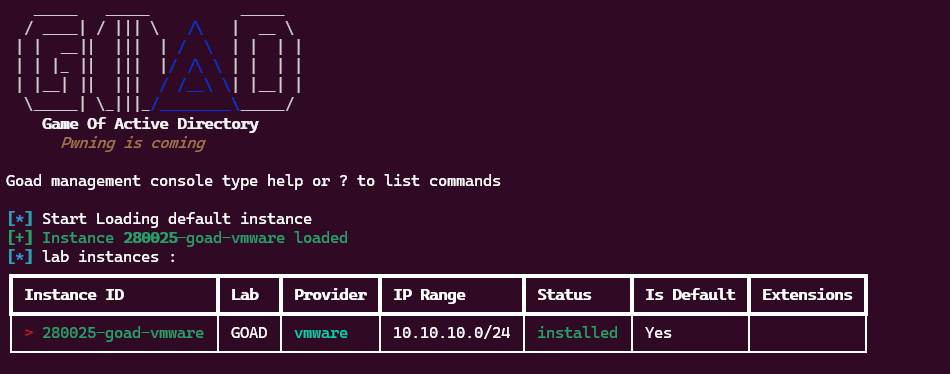
At the end of your install, you have something like this:
./goad.sh

   _____   _____          _____
  / ____| / ||| \   /\   |  __ \
 | |  __||  |||  | /  \  | |  | |
 | | |_ ||  |||  |/ /\ \ | |  | |
 | |__| ||  |||  / /__\ \| |__| |
  \_____| \_|||_/________\_____/
    Game Of Active Directory
      Pwning is coming

Goad management console type help or ? to list commands

[*] Start Loading default instance
[+] Instance 74746e-goad-virtualbox loaded
[*] lab instances :
┏━━━━━━━━━━━━━━━━━━━━━━━━━━┳━━━━━━┳━━━━━━━━━━━━┳━━━━━━━━━━━━━━━━━┳━━━━━━━━━━━┳━━━━━━━━━━━━┳━━━━━━━━━━━━┓
┃ Instance ID              ┃ Lab  ┃ Provider   ┃ IP Range        ┃ Status    ┃ Is Default ┃ Extensions ┃
┡━━━━━━━━━━━━━━━━━━━━━━━━━━╇━━━━━━╇━━━━━━━━━━━━╇━━━━━━━━━━━━━━━━━╇━━━━━━━━━━━╇━━━━━━━━━━━━╇━━━━━━━━━━━━┩
│ 27a12c-goad-vmware       │ GOAD │ vmware     │ 10.10.25.0/24   │ installed │ No         │            │
│ f8c423-goad-aws          │ GOAD │ aws        │ 192.168.56.0/24 │ installed │ No         │            │
│ > 74746e-goad-virtualbox │ GOAD │ virtualbox │ 192.168.28.0/24 │ installed │ Yes        │            │
└──────────────────────────┴──────┴────────────┴─────────────────┴───────────┴────────────┴────────────┘